
Developer Toolchain Overview
Combining API, IDE, automation, and IM plugins
Combining API, IDE, automation, and IM plugins
A reusable work template with realistic input, a defined output format and a human review point.
Run one real task, verify the critical facts and record the before-and-after time.
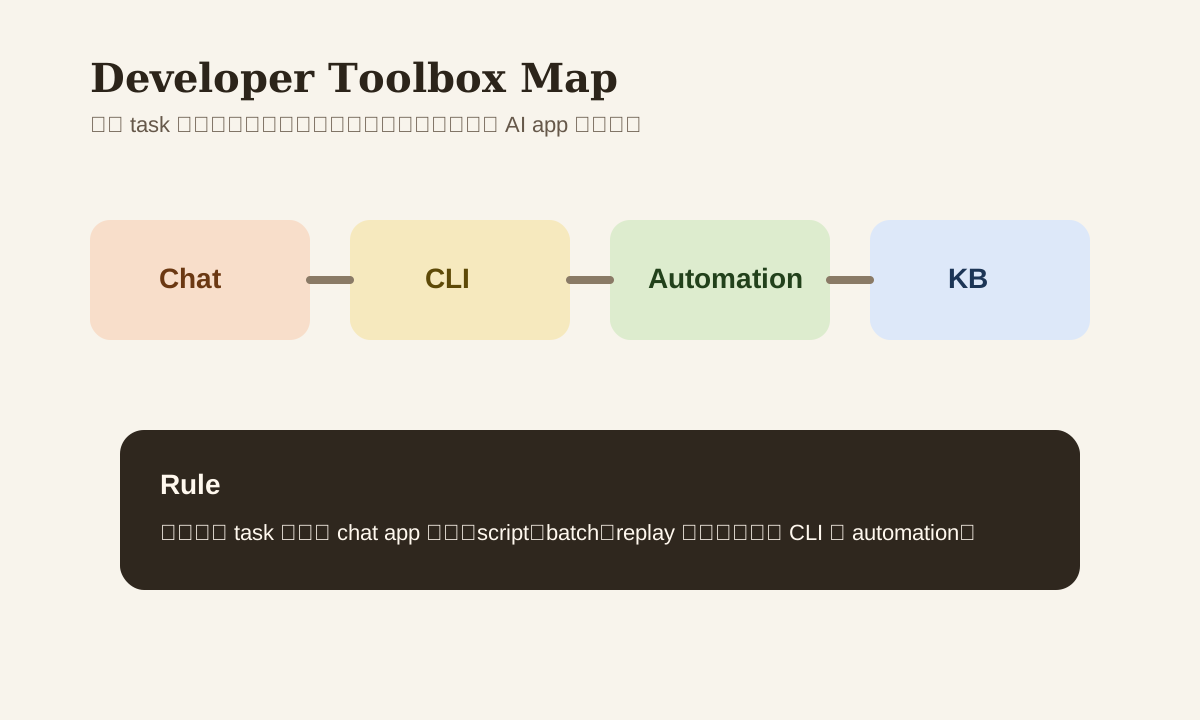
If you've got some technical background, your AI office ceiling is way higher than the average user's. Not because you can write code — but because you can string together chat, CLI, automation, and knowledge base into a reusable toolchain.
That said, more tools doesn't mean more productivity. An effective developer toolbox should solve one thing first: which entry point is smoothest for your most common tasks.
Core Thinking Behind the Developer Toolbox
Don't configure by "what's hot." Configure by task type:
| Task type | Better entry point |
|---|---|
| Quick Q&A, writing, screenshot comprehension | Chat app |
| Scripts, commands, batch processing | CLI / IDE |
| Document organization, knowledge persistence | KB / docs tool |
| Cross-system orchestration | Automation platform |
This breakdown matters. Otherwise you'll end up in a common situation: doing something that belongs in the CLI but repeatedly copy-pasting in a chat window.
1. Chat Entry
Good for:
- Quick Q&A
- Email / summary first drafts
- File and screenshot comprehension
- Brainstorming
Common choices:
- ChatGPT
- Claude
- Gemini
Strength: fast, low barrier, great multi-modal capabilities. But they're not ideal for long-chain automation or terminal workflows that need precise reuse.
2. IDE / CLI Entry
If you need to do these things, IDE / CLI is usually smoother:
- Write small scripts
- Clean CSVs
- Generate commands
- Batch process files
- Debug automation errors
Common combos:
- Cursor
- Claude Code
- GitHub Copilot in VS Code
- OpenAI / Anthropic CLI
For developers, this layer creates the biggest productivity gap — it determines whether AI stays a "chat assistant" or becomes an "execution assistant."
3. Automation Layer
If a task repeats, you should upgrade from manual copy/paste to automation.
Common tools:
- Zapier
- Make
- n8n
- Power Automate
- Apple Shortcuts / Raycast Commands
Good for:
- email -> summary -> task
- form -> classify -> route
- transcript -> notes -> KB
The most important thing at this layer isn't features — it's error handling and logging.
4. Docs / KB Layer
Even great output gets lost fast if you don't persist it. The docs / KB layer is for:
- Storing templates
- Storing SOPs
- Storing examples
- Storing risk notes
Common tools:
- Notion
- Confluence
- Google Docs / Drive
- Yuque
Think of this layer as a memory system, not a scratch editor.
A More Sensible Tool Stack
chat app
  -> ide / cli
  -> automation
  -> docs / kb
Not everyone needs all 4 layers, but developers typically use at least 3.
5 Things Worth Evaluating When Choosing Tools
| Factor | Why it matters |
|---|---|
| Context handling | Can it understand your real work context |
| Output control | Can it reliably output the format you need |
| Integration | Can it connect to your existing stack |
| Logging / replay | Can you review what happened when things break |
| Cost | Will daily usage get too expensive |
Common Mistakes
| Mistake | Problem | Better Approach |
|---|---|---|
| Do everything in the chat app | High copy/paste overhead | Move scripts and batch work to CLI |
| More tools = stronger | Context gets scattered | Assemble around use cases |
| Only evaluate model capability | Missing entry point UX and integration | Evaluate workflow fit together |
| No persistence layer | Good output disappears quickly | Connect to KB |
Practice
Inventory your 3 most repeated tasks right now, and for each determine:
- Is it better suited for chat, CLI, or automation
- Which step wastes the most manual time
- Where should the final output be stored
Once you've done this, your developer toolbox isn't just "a bunch of AI tools installed" — it's a workbench with clear division of labor.