
AI Document & Slide Generation
Generate proposals, reports, and slides — iterate from outline to final draft
Generate proposals, reports, and slides — iterate from outline to final draft
A reusable work template with realistic input, a defined output format and a human review point.
Run one real task, verify the critical facts and record the before-and-after time.
AI can speed you up the most on docs and PPT — but it also drags you into a common trap: it looks like a lot got written, but the logic hasn't been nailed down. We'd recommend using AI at the outline, draft, compression, and review stages, rather than outsourcing the entire document or deck.
A good document still comes down to logic, facts, and audience fit. AI accelerates expression but can't decide "what should this content actually say" for you.
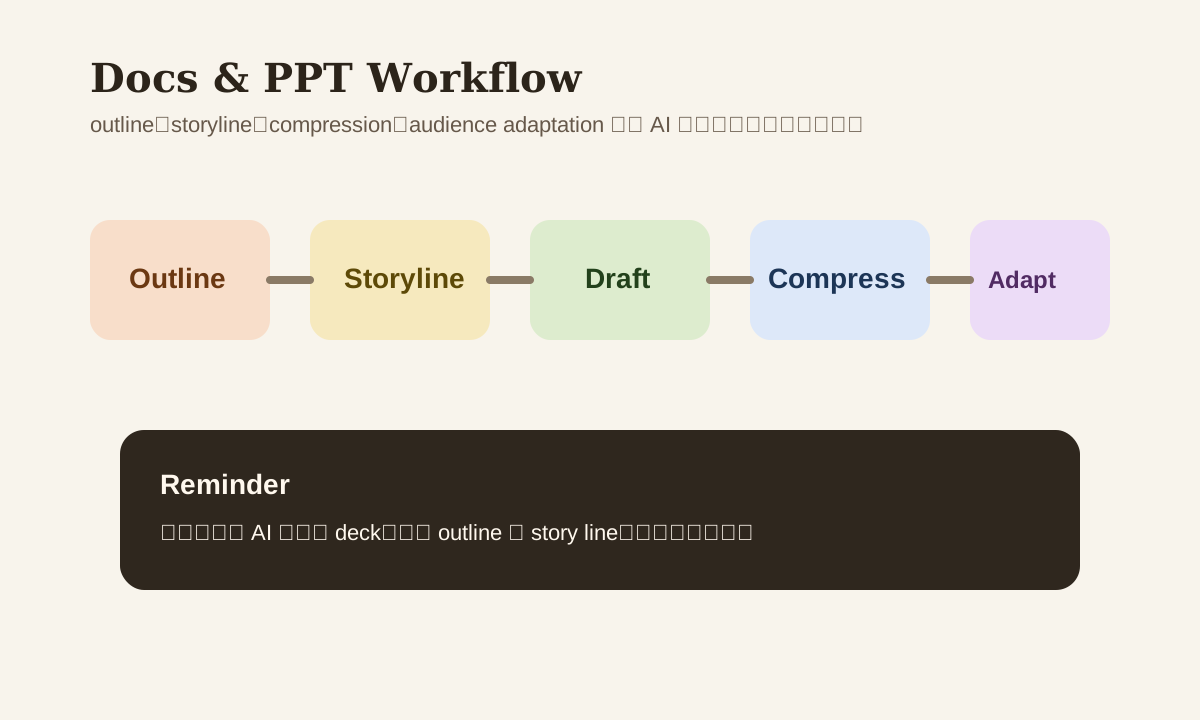
Why Docs / PPT Are a Great Fit for AI
Because these tasks have a stable pattern:
- Define the outline first
- Add supporting points
- Refine wording and compress
- Adapt for the audience
That's exactly the rhythm AI handles well.
Step 1: Start with an Outline — Don't Ask AI to Write the Full Thing
The most common mistake:
Write me a project report PPT for my boss.
Too vague. AI can only give you "content that looks like a PPT." Better approach — ask for an outline first:
Example prompt
Generate a project report deck outline.

Background:
- audience: manager / leadership
- goal: explain this quarter's results, risks, and next quarter plan
- duration: 15 minutes

Output:
- 8 pages max
- title for each page
- 3 key bullets per page
- suggested chart type
Lock in the outline first, then fill in content. Much more stable.
Step 2: AI Should Be a Writing Assistant, Not a Ghost Writer
A more reliable collaboration model:
- You provide the draft
- AI restructures it
- AI flags where logic is unclear
- AI offers 2-3 wording alternatives
This way you still own the content direction. AI accelerates the expression.
Step 3: PPT Isn't Just Words — Think About the Storyline
The most overlooked part of a deck isn't bullet wording — it's the storyline. AI is great at comparing common storyline options:
| Storyline | Best for |
|---|---|
| Problem -> Insight -> Action | Explaining problems and solutions |
| Status -> Risk -> Next step | Weekly reports, project updates |
| Before -> Change -> Impact | Transformation, optimization retros |
| Goal -> Plan -> KPI | Planning presentations |
Have AI suggest 2-3 storylines first, pick one, then continue writing. More reliable than filling everything at once.
Step 4: Compression Is One of AI's Best Skills Here
This might be AI's single most practical use in docs / PPT. You can have it:
- Compress a 1500-word proposal into 5 executive bullets
- Rewrite long paragraphs as slide-friendly short sentences
- Rewrite technical details for a non-technical audience
Example
Compress this content into 4 bullets suitable for a PPT slide.
Requirements:
- Each bullet under 18 words
- Keep the most critical numbers
- No vague conclusions
Step 5: Audience Adaptation Is Key
Same content, different audience, different writing style:
- For managers: conclusions, risks, resource needs
- For execution teams: actions, owner, timeline
- For clients: value, boundaries, next steps
AI handles this well, but only if you clearly specify the audience and tone.
A Practical Workflow
input notes
  -> outline
  -> storyline selection
  -> draft bullets
  -> compression
  -> audience adaptation
  -> final review
This workflow is closer to real work than "please write me a PPT."
Common Mistakes
| Mistake | Problem | Better Approach |
|---|---|---|
| Write the full thing immediately | Logic often falls apart | Start with outline |
| Focus only on wording, not storyline | Looks like a PPT, doesn't read like a report | Pick a storyline first |
| Don't differentiate audience | One version can't serve all | Do audience adaptation |
| Skip final fact check | AI tends to fill in unconfirmed info | Human review at the end |
Practice
Take an old weekly report or project update:
- Have AI produce 2 storyline options
- Pick 1 and generate a 6-8 page outline
- Have AI compress into manager-version bullets
- Do your own fact check
You'll clearly feel it: AI's biggest value in docs / PPT isn't ghostwriting — it's helping you organize information into a presentable structure, faster.